

Android FCM Setup
a0 uses Firebase Cloud Messaging (FCM v1) to deliver push notifications to Android devices. You need two files from Firebase:Step 1: Create a Firebase project
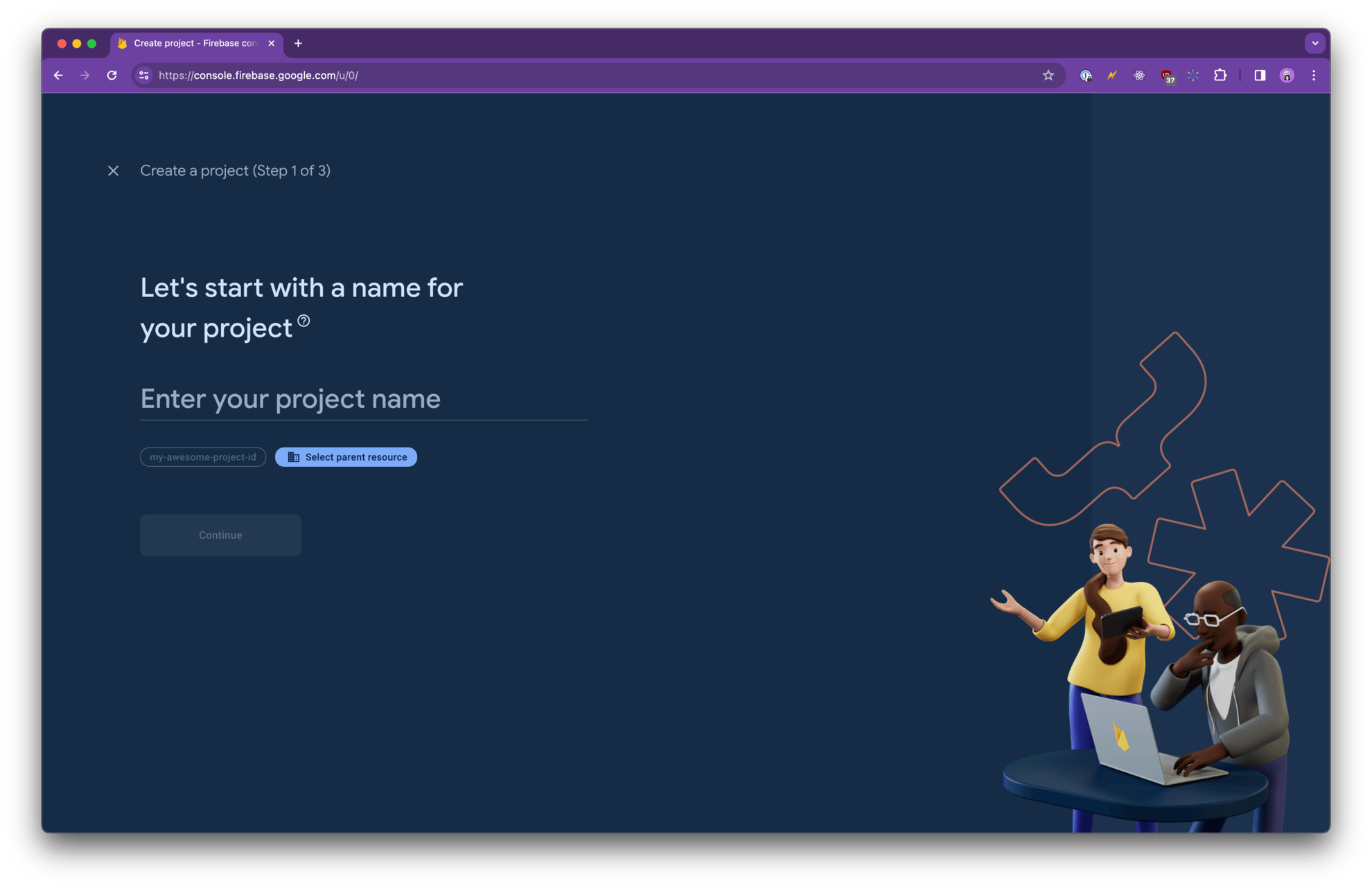
If you already have a Firebase project for your app, skip to Step 2.- Open the Firebase Console
- Click Add project and follow the setup wizard
Step 2: Download google-services.json
This file contains your Firebase project’s public configuration and is required for your Android app to connect to Firebase.- In the Firebase Console, open Project settings (gear icon)
- Under Your apps, select your Android app (or click Add app → Android if you haven’t added one yet)
- Enter your Android package name — this should match the bundle identifier used in your a0 project
- Click Download google-services.json
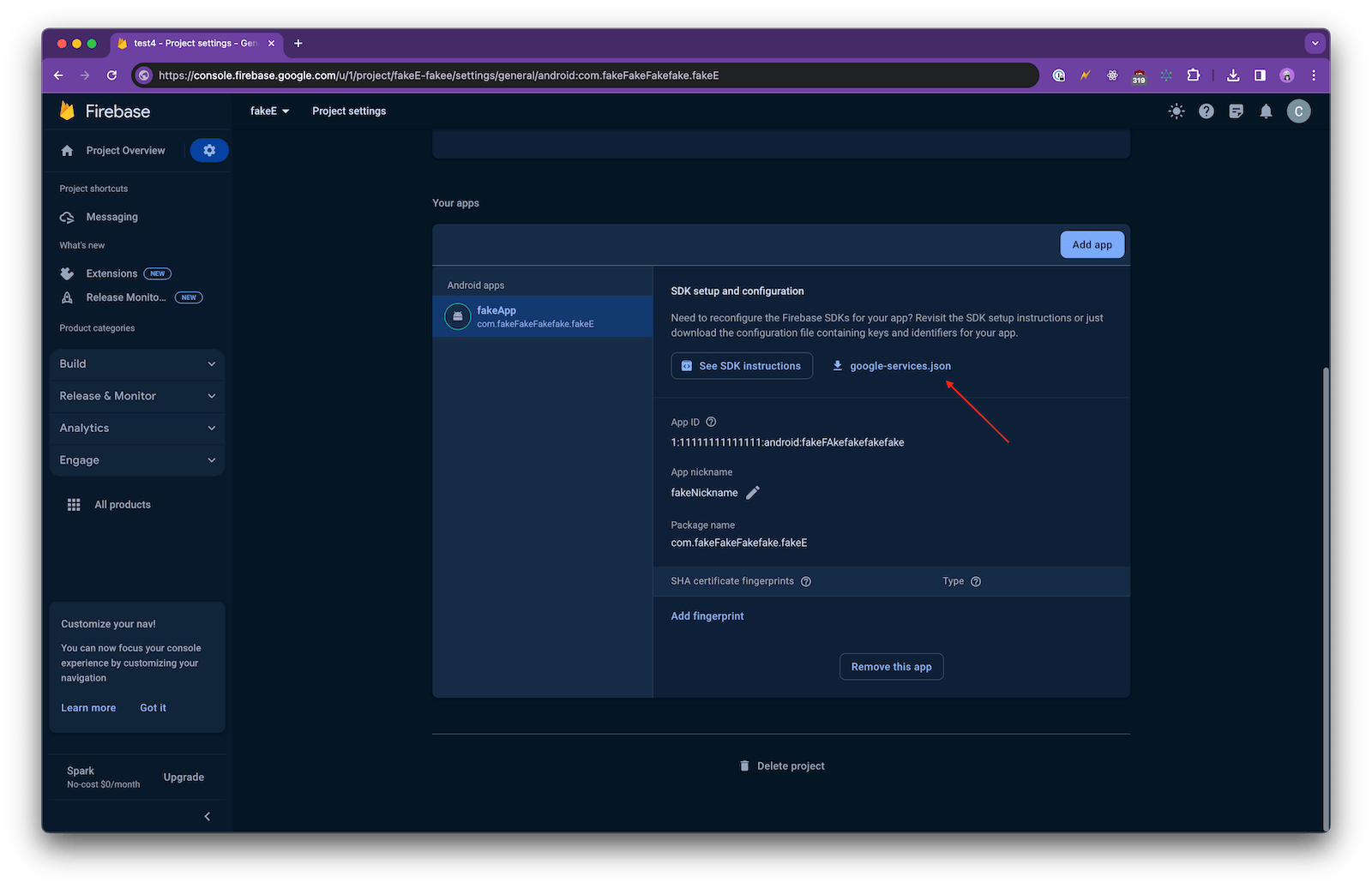
This file contains public-facing identifiers and is safe to commit to your repository. It does not contain any private keys.
Step 3: Create a Firebase service account key
The service account key is a private JSON file that authorizes a0’s servers to send push notifications on your behalf via the FCM v1 API.- In the Firebase Console, open Project settings → Service accounts
- Make sure Firebase Admin SDK is selected
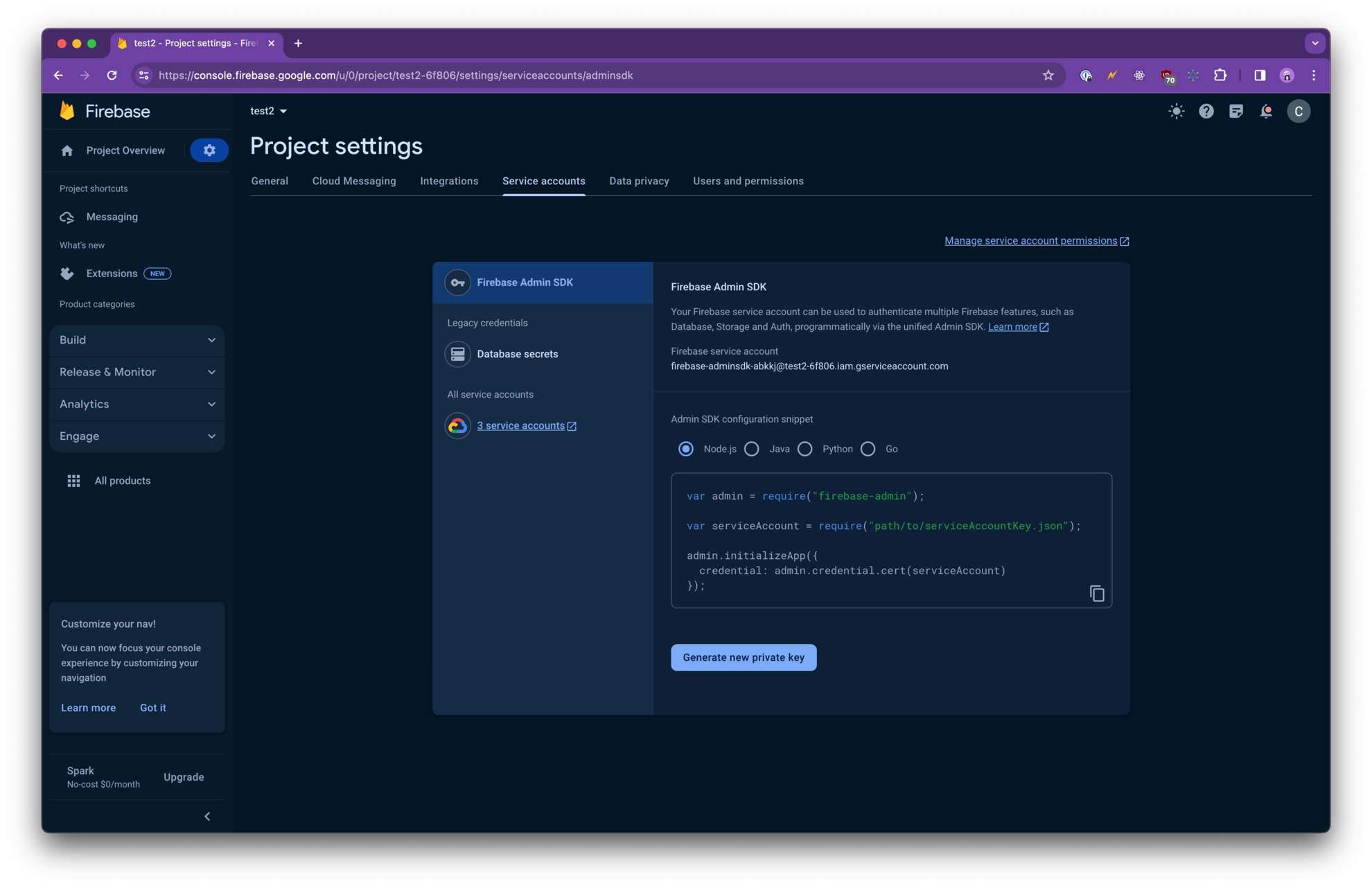
- Click Generate New Private Key
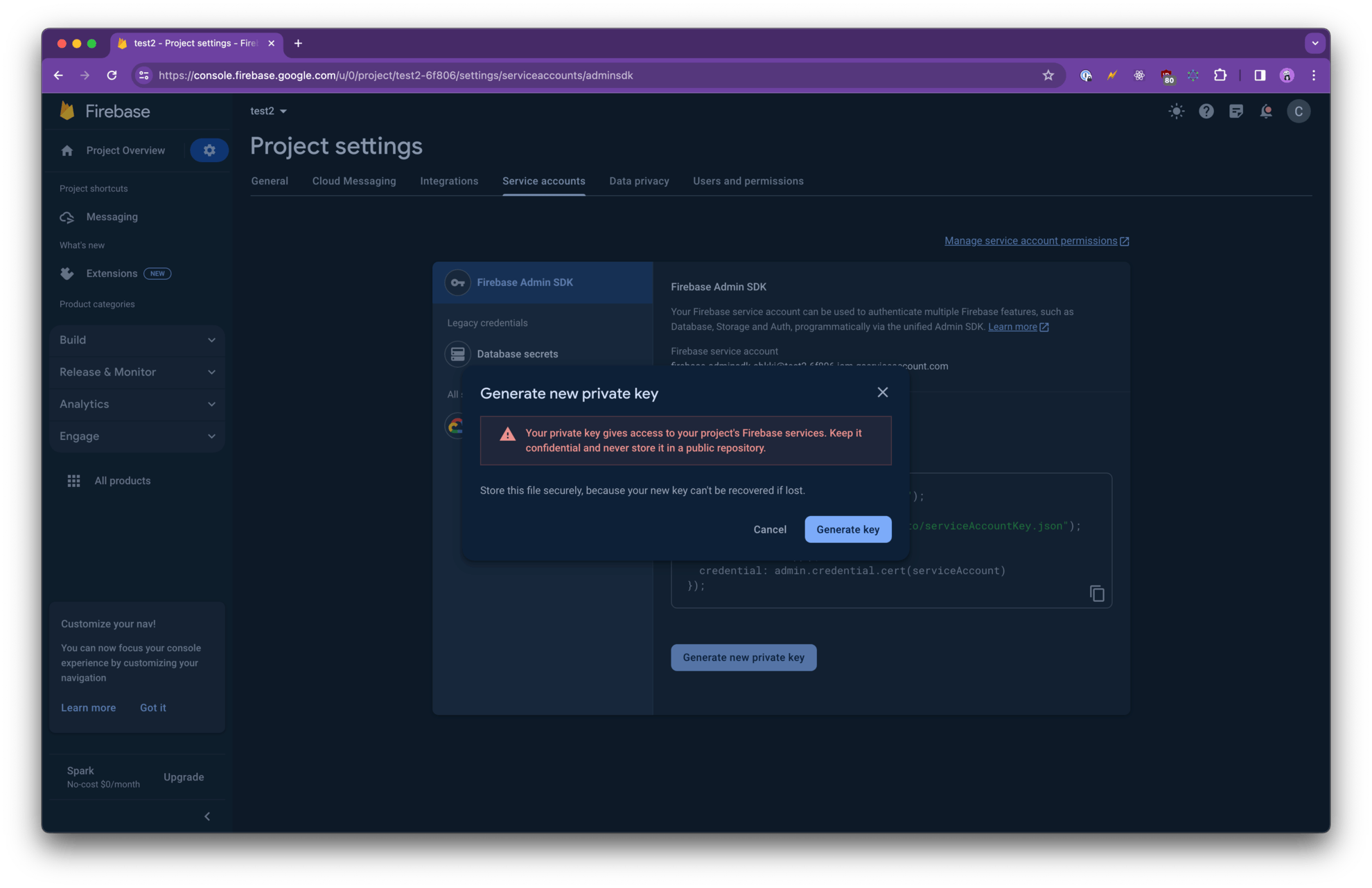
- Confirm by clicking Generate Key — a JSON file will download
Using an existing service account
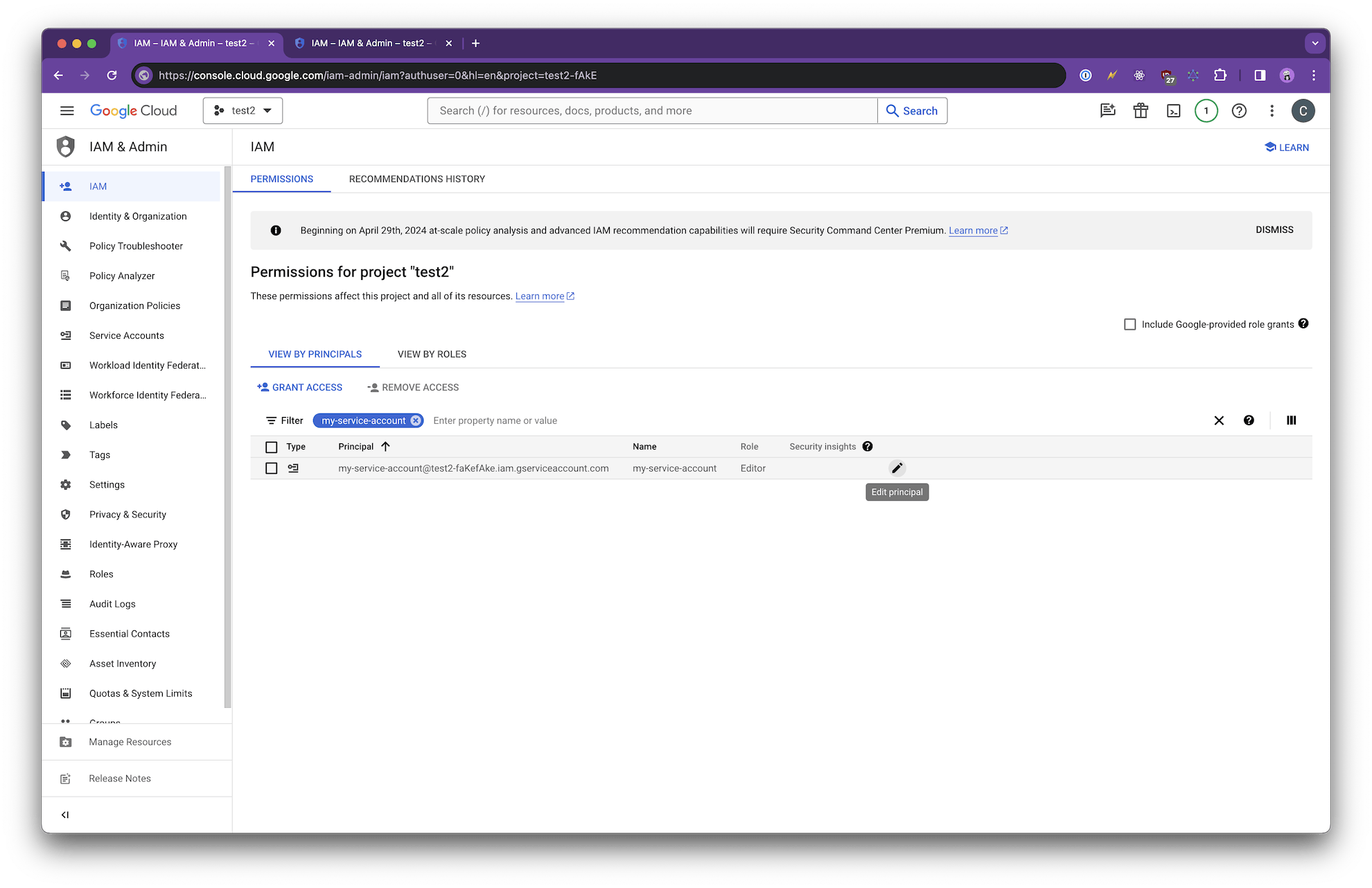
If you already have a Google Cloud service account and want to reuse it for FCM:- Open the IAM Admin page in Google Cloud Console
- Find the service account you want to use and click the pencil icon to Edit Principal
- Click Add Role and select Firebase Cloud Messaging API Admin
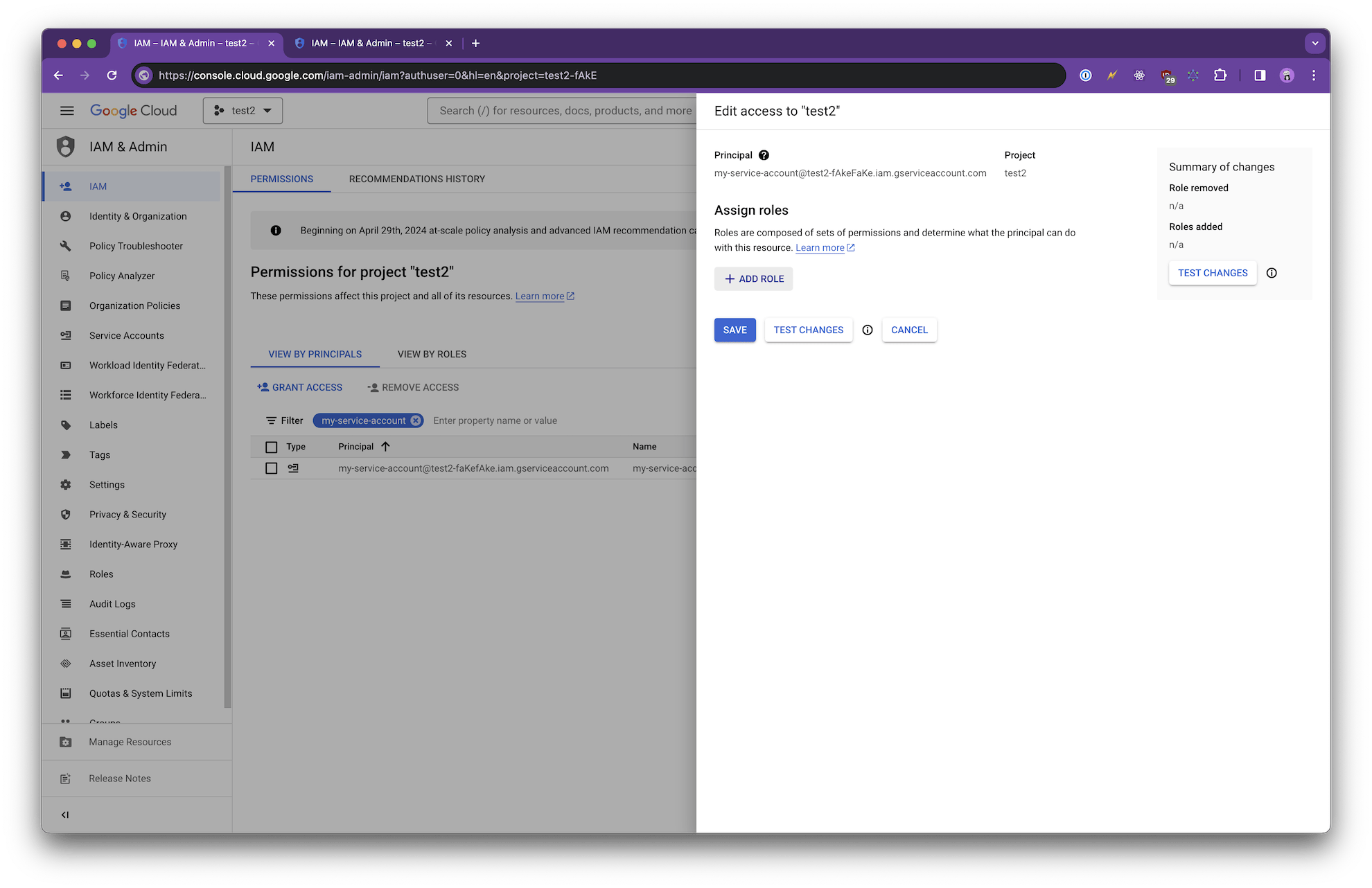
- Click Save
- Download a new JSON key for this service account if you don’t already have one
Step 4: Upload to a0
- Open your project in a0
- Go to Project Settings → Build Settings → Android Credentials
- Upload your google-services.json file
- Upload your Firebase service account key file
- Build a new custom APK — the credentials will be included automatically
After uploading new credentials, you need to create a new APK build for the changes to take effect. Existing builds will continue using the credentials they were built with.