> ## Documentation Index
> Fetch the complete documentation index at: https://docs.a0.dev/llms.txt
> Use this file to discover all available pages before exploring further.
# Deploying Your App
> Step-by-step guide to deploy your iOS app using the a0 platform
This guide walks you through the process of deploying your iOS app using the a0 platform. We'll cover everything from initial setup to generating your App Store-ready build.
## Prerequisites
* [Apple Developer Program Connected to a0](/publishing/ios/app-store-connect/setup)
* [App Store Connect account with Bundle ID and App created](/publishing/ios/preparing-asc-account)
* Your app code ready for deployment
## Accessing the Deployment Dashboard
1. Log in to your [a0 Dashboard](https://a0.dev)
2. Open a chat in your selected project
3. click the **Deployment** button in the top right.
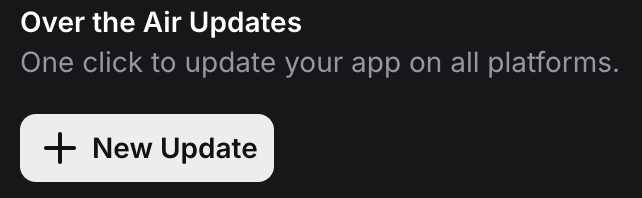
1. If you haven't already, click the "New Update" button to ensure your deployed code is up to date
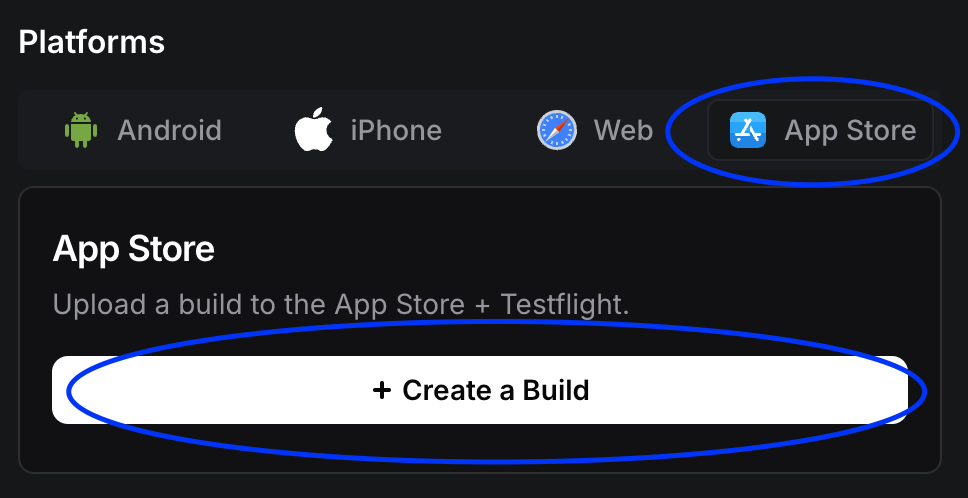
 2. Click on **App Store** icon in the modal then click on **Create a Build**
3. You'll see the deployment configuration interface
2. Click on **App Store** icon in the modal then click on **Create a Build**
3. You'll see the deployment configuration interface
 The interface should show your project's current deployment status.
## Configuring Your iOS Build
If you haven't already connected your account, follow the steps [here](/publishing/ios/app-store-connect/setup)
This step only needs to be completed once per account.
1. Confirm your app version, name and icon look correct (this can be modified in settings)
2. From the BundleID dropdown select the app you created in the previous step
3. From the Team ID dropdown, select the Team ID which is associated with the selected Bundle ID
If the Bundle ID isn't within the same account as the Team ID your build will not work
1. Click the Generate & Submit button at the bottom of the deployment modal
The interface should show your project's current deployment status.
## Configuring Your iOS Build
If you haven't already connected your account, follow the steps [here](/publishing/ios/app-store-connect/setup)
This step only needs to be completed once per account.
1. Confirm your app version, name and icon look correct (this can be modified in settings)
2. From the BundleID dropdown select the app you created in the previous step
3. From the Team ID dropdown, select the Team ID which is associated with the selected Bundle ID
If the Bundle ID isn't within the same account as the Team ID your build will not work
1. Click the Generate & Submit button at the bottom of the deployment modal
 2. Wait until the loading modal is complete and your app should appear within your app store connect account.
It can take up to 10 minutes for your build to appear on your account
## Post-Build Actions
After your build is generated and submitted, follow these verification steps:
* Check that the build appears in App Store Connect
* Navigate to **TestFlight** to see your build
* Verify build number and version match
## Testing Your Build
Before submitting to the App Store:
1. Add internal testers in App Store Connect
2. Create a test group
3. Distribute the build to testers
4. Collect feedback and iterate
1. Submit for Beta App Review (if required)
2. Add external testers
3. Monitor usage analytics
4. Address any reported issues
## Next Steps
With your app successfully deployed:
1. Complete [pre-submission checklist](/publishing/ios/submission-checklist)
2. Submit for App Store review
3. Monitor review status and respond to feedback
Join our Discord for real-time support with deployment issues.
##
2. Wait until the loading modal is complete and your app should appear within your app store connect account.
It can take up to 10 minutes for your build to appear on your account
## Post-Build Actions
After your build is generated and submitted, follow these verification steps:
* Check that the build appears in App Store Connect
* Navigate to **TestFlight** to see your build
* Verify build number and version match
## Testing Your Build
Before submitting to the App Store:
1. Add internal testers in App Store Connect
2. Create a test group
3. Distribute the build to testers
4. Collect feedback and iterate
1. Submit for Beta App Review (if required)
2. Add external testers
3. Monitor usage analytics
4. Address any reported issues
## Next Steps
With your app successfully deployed:
1. Complete [pre-submission checklist](/publishing/ios/submission-checklist)
2. Submit for App Store review
3. Monitor review status and respond to feedback
Join our Discord for real-time support with deployment issues.
##