> ## Documentation Index
> Fetch the complete documentation index at: https://docs.a0.dev/llms.txt
> Use this file to discover all available pages before exploring further.
# Manual Setup
> Manually connect your App Store Connect Account
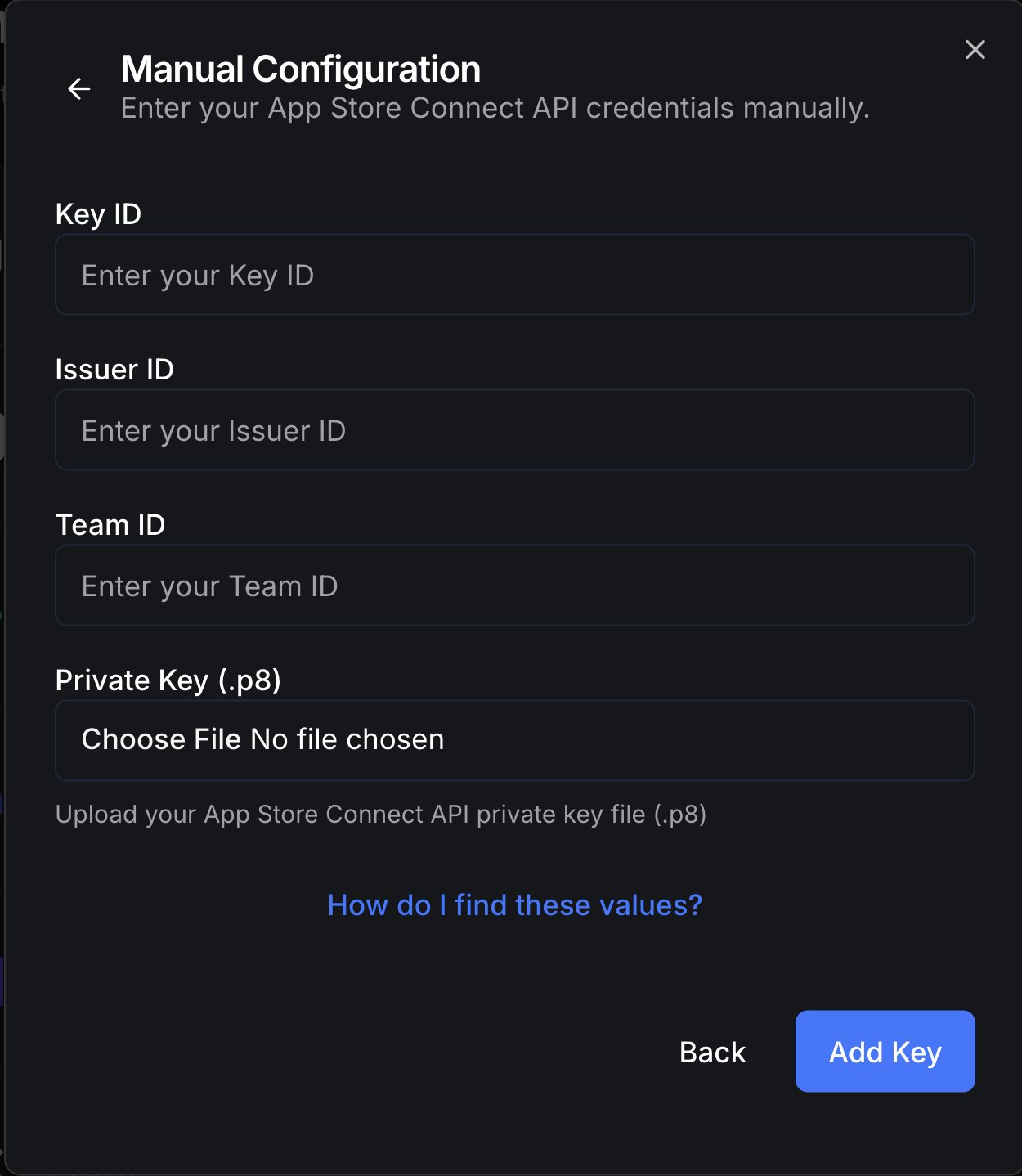
Manual Setup requires manually creating a Team API Key in App Store Connect and uploading the values to [a0.dev](http://a0.dev)
 ## Requirements
* Acces to [A paid Apple Developer Account](https://developer.apple.com/programs/enroll/)
* Admin Persissions or higher inside an Apple Development Team
### Step 1: Creating The Key
You'll need to create a Team API Key for a0 with Admin Permissions and save this file to your computer.
Visit [https://appstoreconnect.apple.com/access/integrations/api](https://appstoreconnect.apple.com/access/integrations/api) and select the "Team Keys" tab under "App Store Connect API"
## Requirements
* Acces to [A paid Apple Developer Account](https://developer.apple.com/programs/enroll/)
* Admin Persissions or higher inside an Apple Development Team
### Step 1: Creating The Key
You'll need to create a Team API Key for a0 with Admin Permissions and save this file to your computer.
Visit [https://appstoreconnect.apple.com/access/integrations/api](https://appstoreconnect.apple.com/access/integrations/api) and select the "Team Keys" tab under "App Store Connect API"
 Press the Blue Plus button
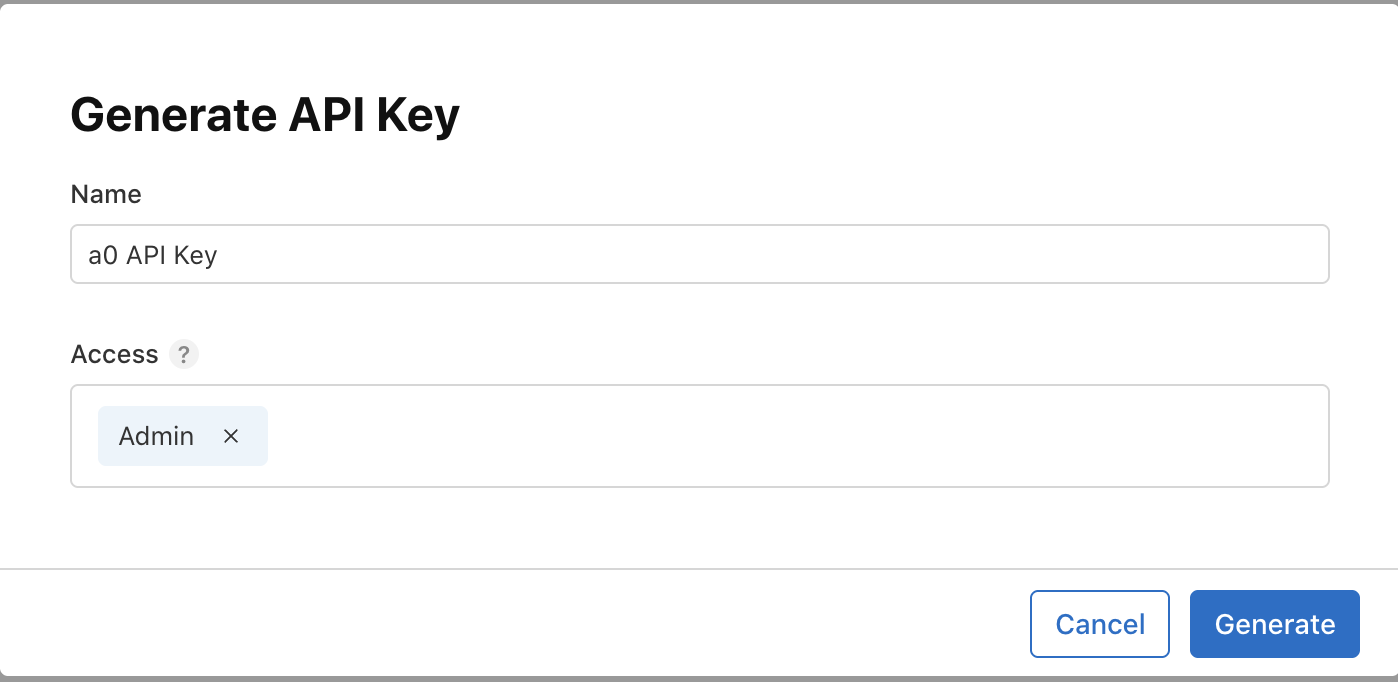 * Give your new Key a name like "a0 API Key"
* Make sure to set the access to **Admin**
* Press the blue "Generate" button
* Press the Download button on the right of the row that contains your new key.
* Save the .p8 to a secure location on your computer. You'll only be able to download this file once.
### Step 2: Uploading the Key to [a0](http://a0.dev)
* Give your new Key a name like "a0 API Key"
* Make sure to set the access to **Admin**
* Press the blue "Generate" button
* Press the Download button on the right of the row that contains your new key.
* Save the .p8 to a secure location on your computer. You'll only be able to download this file once.
### Step 2: Uploading the Key to [a0](http://a0.dev)
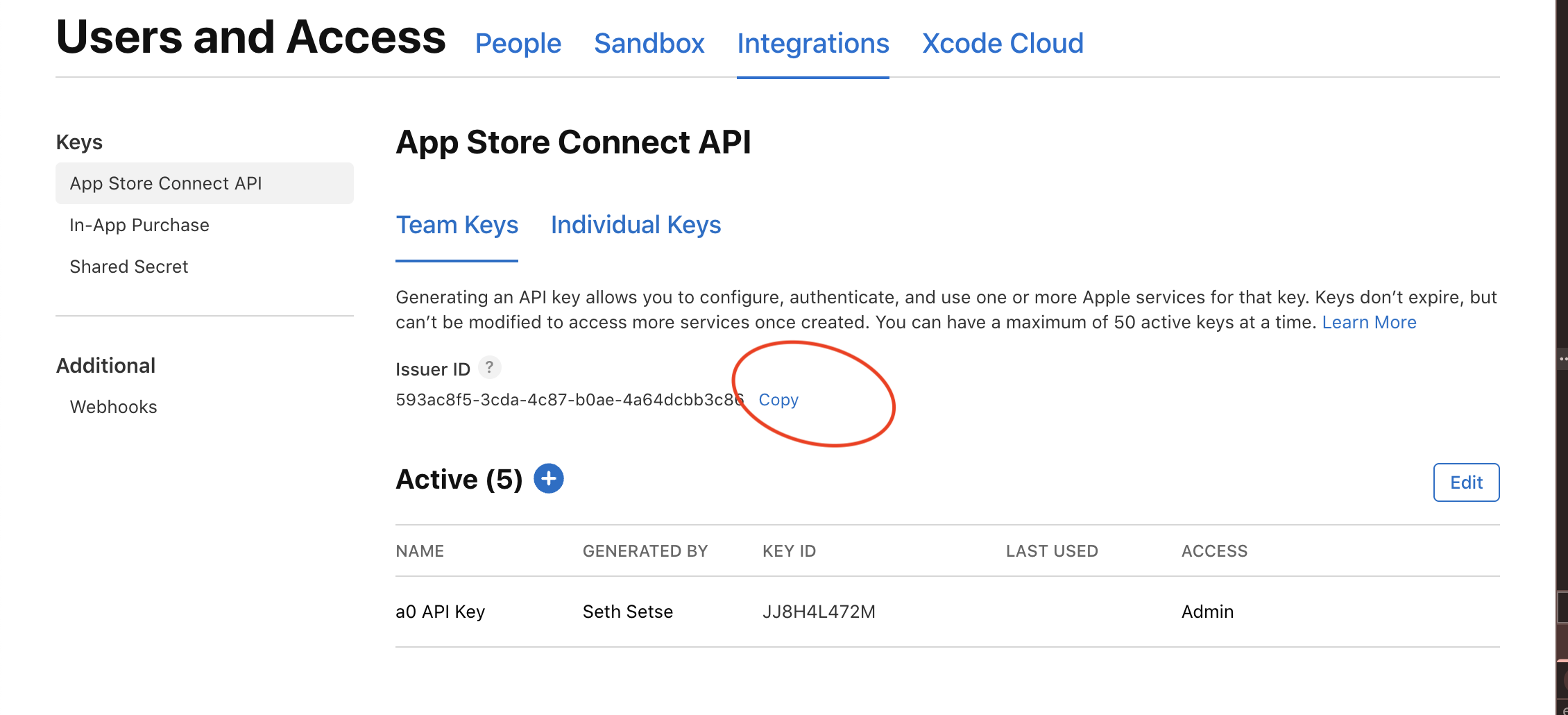
 * Hover over the Key in App Store Connect and press Copy Key Id
The issuer ID is in the middle of the Team Keys Page
* Hover over the Key in App Store Connect and press Copy Key Id
The issuer ID is in the middle of the Team Keys Page
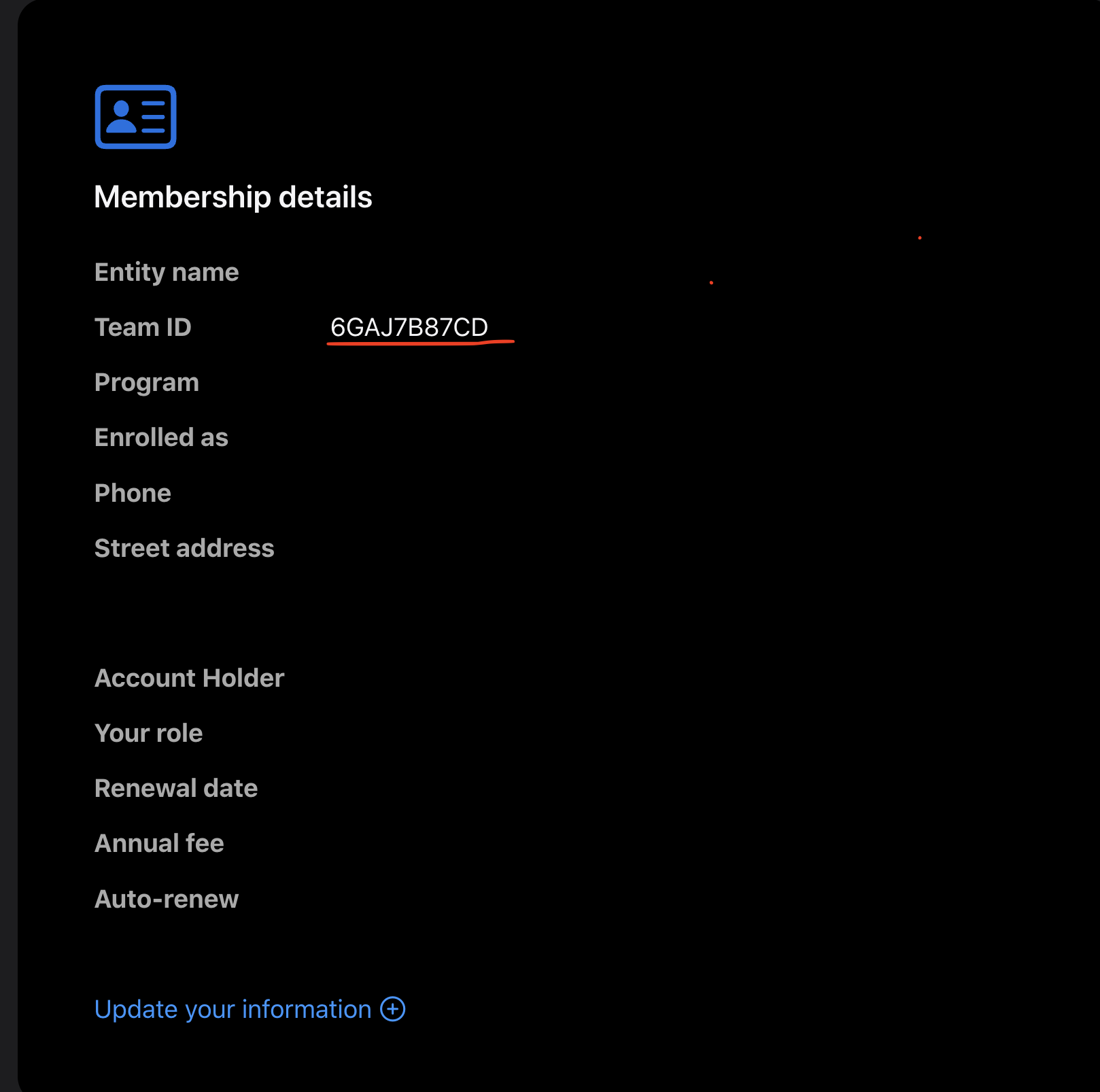 1. Navigate to [Your Apple Developer Profile](https://developer.apple.com/account#:~:text=Team%20ID)
2. Scroll down to the Membership Details Section
3. Copy your Team ID
The Team Name is used to identify your team in a0.
1. Navigate to [Your Apple Developer Profile](https://developer.apple.com/account)
2. Scroll down to the Membership Details Section
3. Copy the value next to **Entity Name** (for organizations) or your name (for individual accounts)
This is the same page where you found your Team ID.
* The Private Key is a .p8 file saved to your computer from the previous step.
* Make sure that the name of the private key matches the Key ID you enter in a0.
1. Navigate to [Your Apple Developer Profile](https://developer.apple.com/account#:~:text=Team%20ID)
2. Scroll down to the Membership Details Section
3. Copy your Team ID
The Team Name is used to identify your team in a0.
1. Navigate to [Your Apple Developer Profile](https://developer.apple.com/account)
2. Scroll down to the Membership Details Section
3. Copy the value next to **Entity Name** (for organizations) or your name (for individual accounts)
This is the same page where you found your Team ID.
* The Private Key is a .p8 file saved to your computer from the previous step.
* Make sure that the name of the private key matches the Key ID you enter in a0.